SHARE
Get started with Teamified

Teamified was designed to help solve the common issues companies face when hiring and managing global teams. From start-ups to enterprises, this unique platform helps you efficiently manage recruitment and day-to-day communication with staff, no matter where they are located. It’s never been easier to completely manage a global team from one place.

Let’s take a look at how to get up and running quickly with Teamified.

1.If you haven’t already, sign-up to the platform by following this link. Be sure to get your HR, finance and team managers signed up too

2.We’ll be in touch via email with your login information.

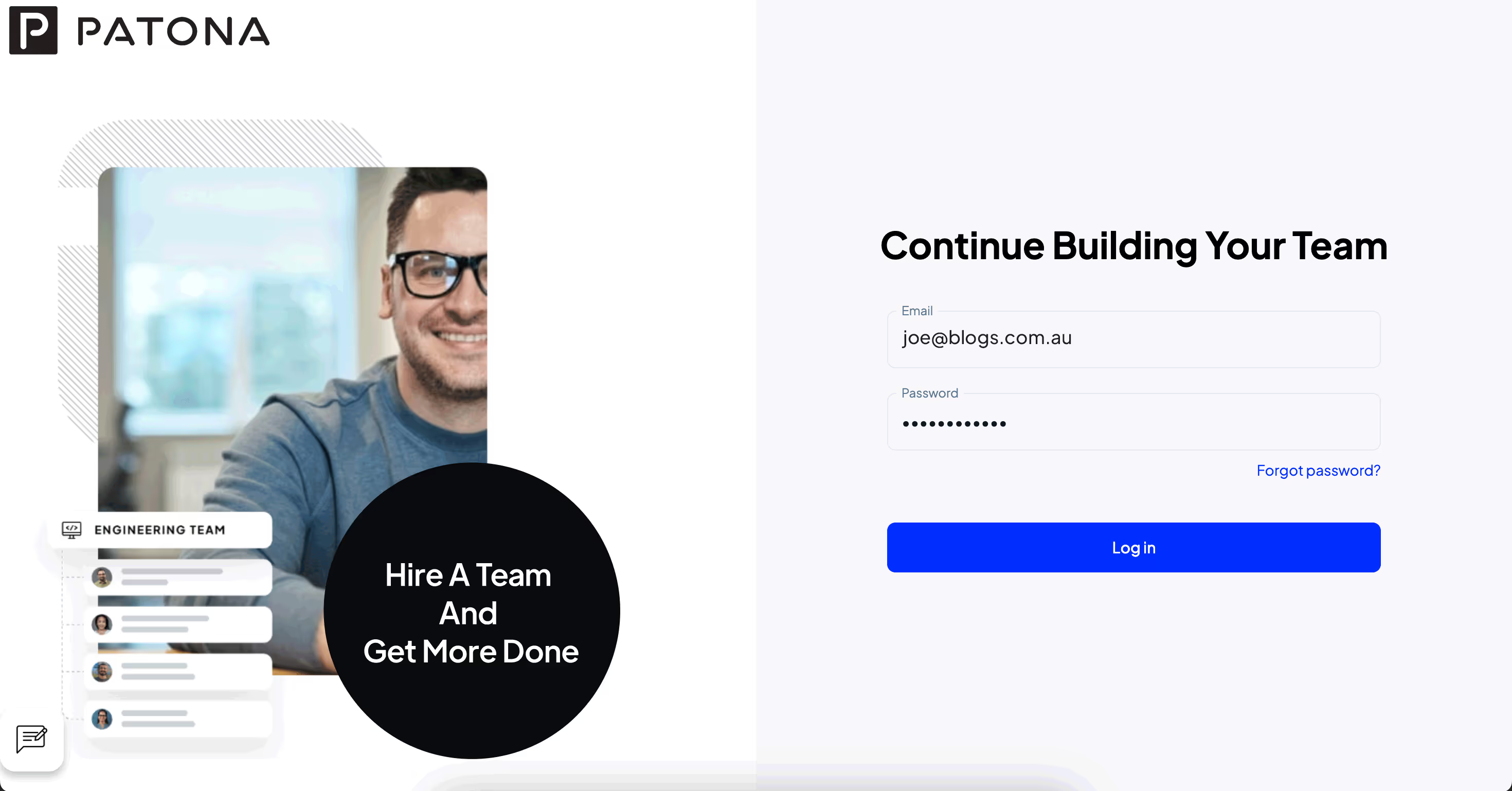
3.Once you’ve received this email, your account will be activated and you can now login.


6538dcade60e37c5be73b27e_Login-screen

When you have logged in, you will land on your company’s dashboard. Here, you will find an overview of your staff and recruitment activities, including team members, job requests, candidate status, leave calendar and invoice management.
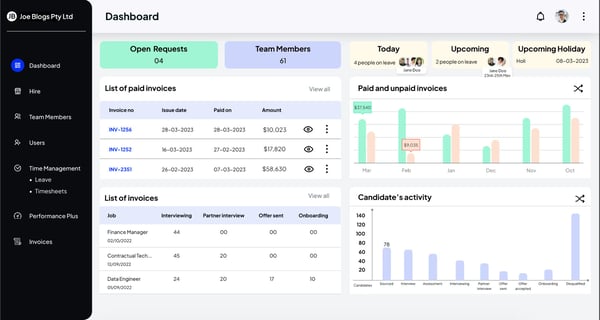
6538dd333a3cefa785a4d7b2_Dashboard

Using the dashboard you’ll be able to navigate through different workspaces that help you keep track of various activities — let’s explore:

Recruitment

You’re building your team - great! Let’s make it easy for you:

For an overview of your recruitment activities,

  • Head to the Hire tab on the left hand side navigation.
  • You’ll have visibility of your open roles and what stage of the recruitment process they’re at.

Need to fill a vacant role?

1.Hit the New Request button

2.When prompted, fill in the required information we will need to promote the role.

3.Don’t have a JD yet? Use the handy AI Generated job description feature to have Chat GPT create a comprehensive JD in seconds! Save valuable time by selecting from three draft options that can be reviewed and customised to suit your business and needs. Once you’re happy with your edits, hit the Generate button, and then Save - your job request is now live for Teamified’s qualified pool of candidates to view and apply.

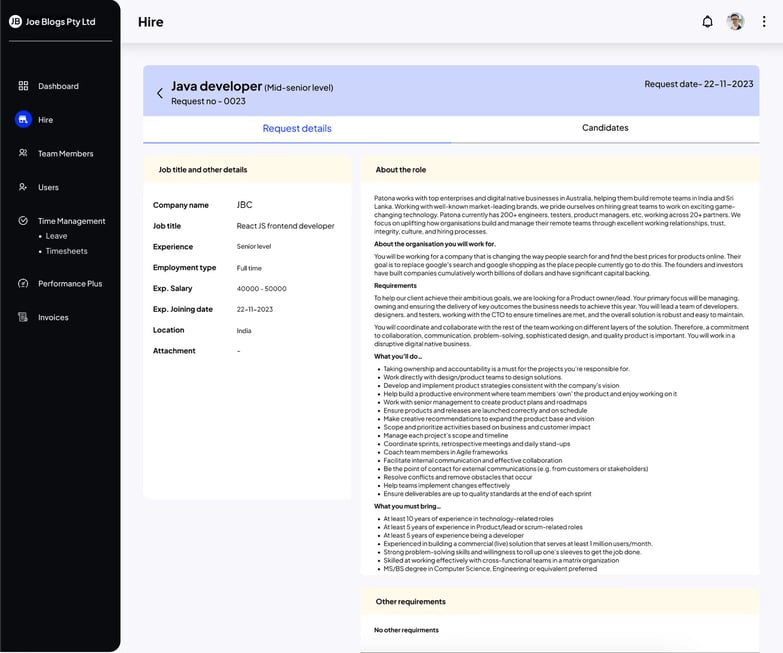
4.You’ll be able to review applicants, make notes for your colleagues about your thoughts, and move candidates through different phases of the recruitment process including screening, interview, assessment, approval, offer and disqualification. This process can be tailored to your business, and edited by you!.

6538de6680e6bba92977fac3_Role


Team Members

View your entire Teamified team in one place. This section acts as your HR software, providing a detailed overview of your employees including their profile, personal contacts, position information, resume, leave record and more. With a holistic view of team members, managers can easily approve timesheets, leave requests, and invoices.
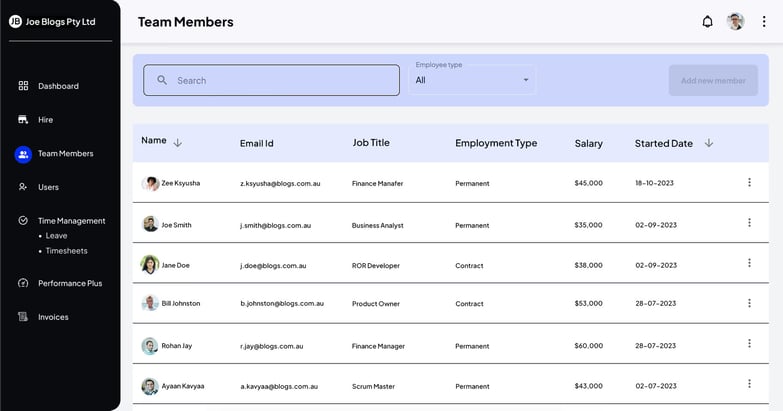
6538debf77da5a30ab68380a_Team Members

Users

These are the people from your company, typically HR and team managers, who directly manage Teamified employees. Here, you can add users to the platform by sending them an invitation, or remove users by selecting the three dots next to their name.
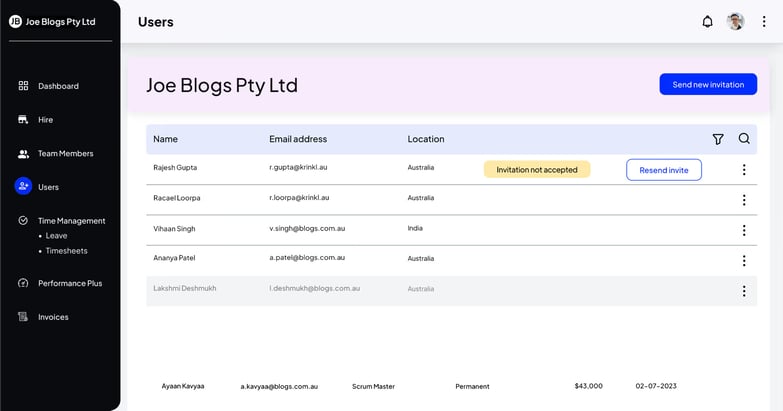
6538dee2d8a1e963182778ff_Users

Leave Management

A highly functional and feature rich workspace where users can view, receive and review their teams’ leave requests. Let’s take a closer look:
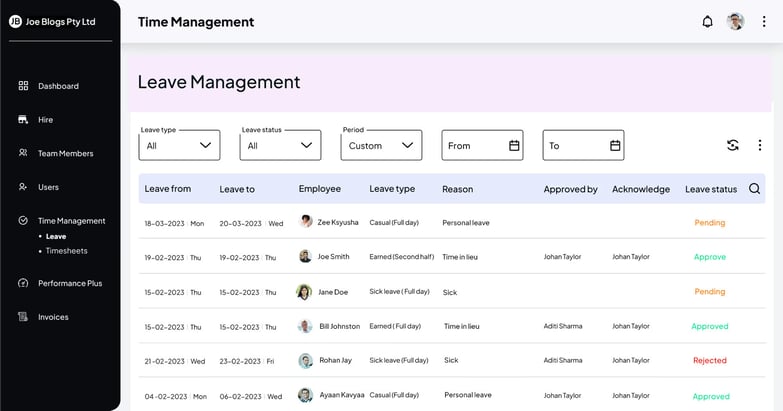
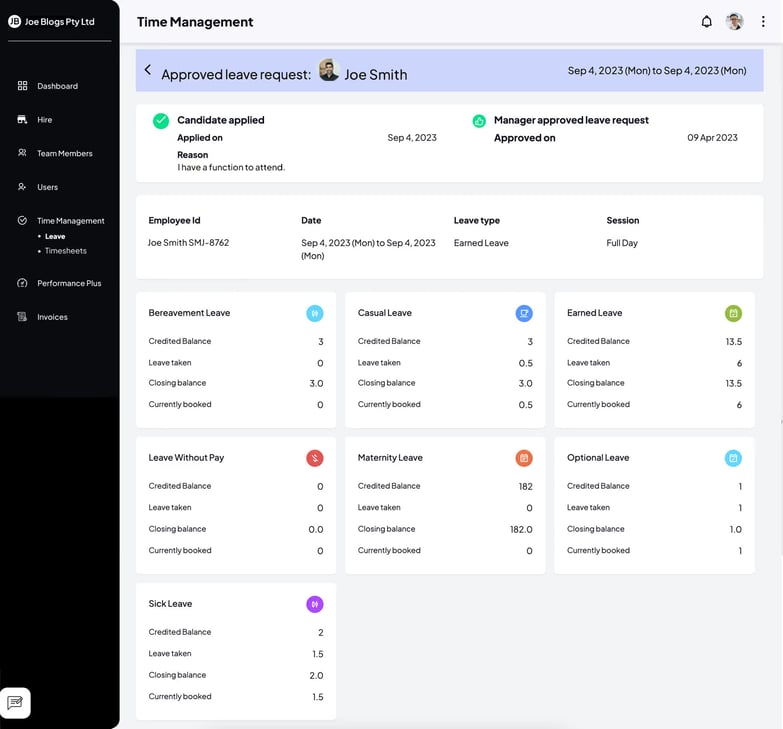
  • Receive notifications when a new leave request is submitted.
  • Review and approve or reject a request with the ability to leave a comment for the team member.
6538df3c37ed55e498efbfc3_Leave


  • Use smart filters to display the types of leave, status, and dates.
  • Get insight into the reason for leave and the manager who approved the leave.
  • Calendar view of all leave for your team members over a selected period of time.
6538df7180e6bba92979252c_Leave-overview

Time Management

Team members have the ability to submit timesheets, providing detailed insight into the work they have completed, allowing managers to expedite approvals and billing. Timesheet details include:
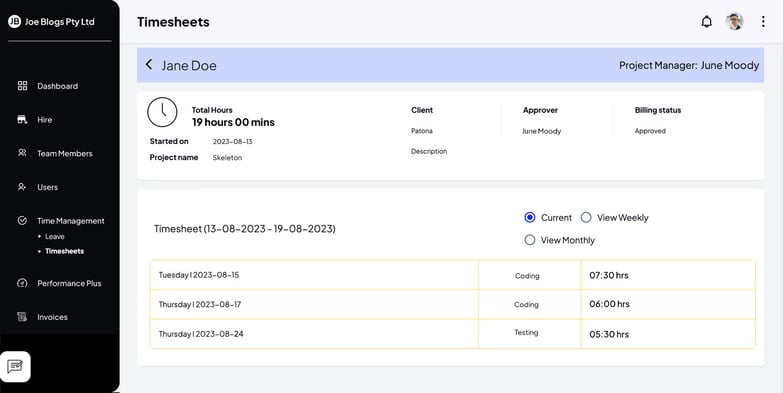
  • Daily hours worked
  • What they worked on
  • Weekly or monthly view 
6538df901a83b2e8b71bbde4_Timesheets

Invoices

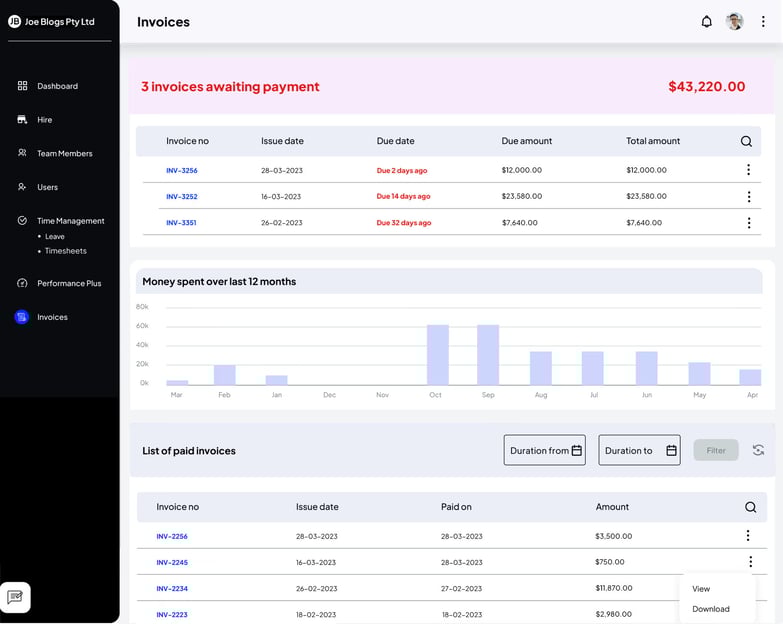
In this section, your platform admin will have the ability to view the invoices owed to Teamified and their status.

Smart filters enable you to view the list of paid invoices within a certain period of time, with the default view being 12 months.

The workflow is intuitive and allows you to access documents related to an invoice by simply clicking on the invoice row. ‍
6538dfc9291c9fa4ed298dc0_Invoices


And there you have it. We hope this brief guide to getting started with Teamified has helped you on your way to a stress-free global team experience — stay tuned for more comprehensive feature overviews coming soon. For now, jump in, make yourself at home and enjoy getting to know Teamified.


If you have any questions, simply pop them into the chat on the platform - we’re here to help!

About The Author